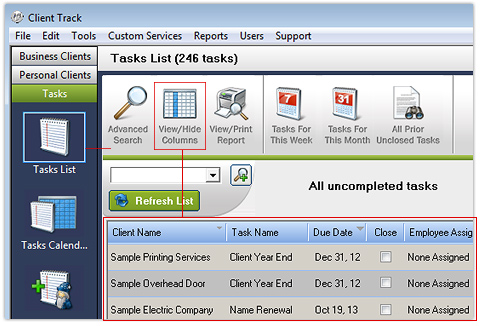
1) Click the Tasks List icon under Tasks section in sidebar.
2) Click Refresh List to update the tasks list for all clients.
3) Click View/Hide Columns from tasks menu bar as shown above.
Note: To print a specific type of tasks report, go to Step 2.
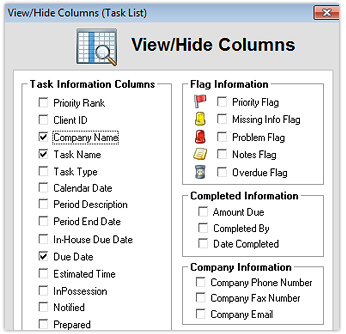
4) Check off which columns to appear on report and then click Ok.
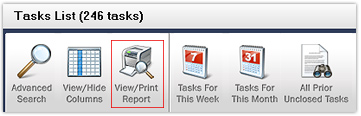
5) Check View/Print Report from tasks menu.
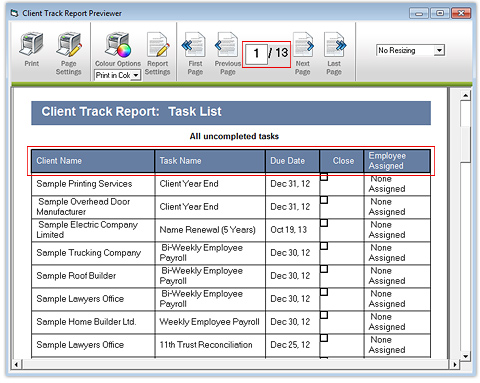
6) Skim through all the pages of the report to verify that all the columns for tasks
appears as well the tasks information for all clients.
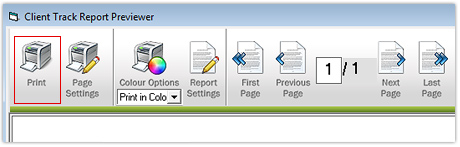
7) Follow Step 4 on print and report options.
Step 2
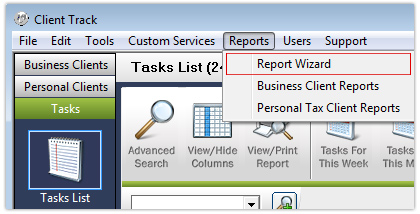
In menu, go to
Reports > Report Wizard
Step 3
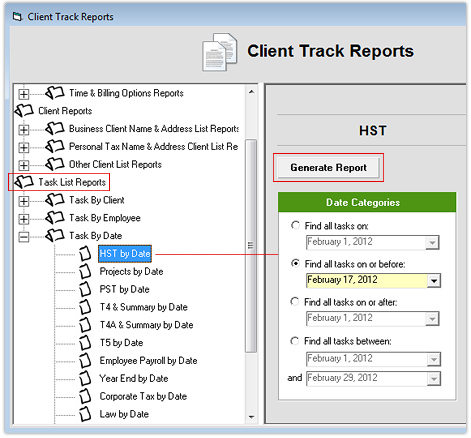
1) Click Task List Reports in list menu as shown above.
2) Click on a task type to create report for under Task by Client,
Employee or by Date
by clicking on the plus (+) sign.
3) Select type of task date search and click Generate Report.
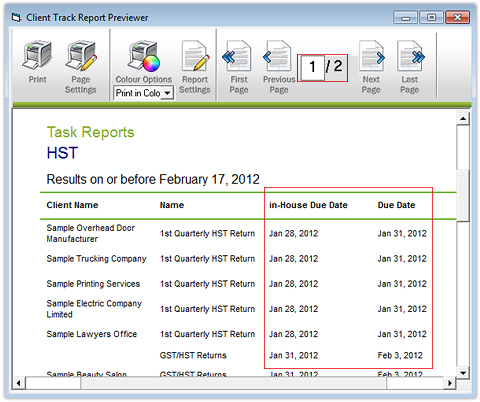
4) Skim through all the pages of the report to verify all tasks information.
5) Follow Step 4 on print and report options.
Step 4
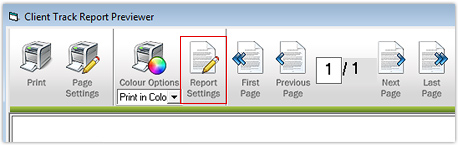
1) In report previewer for tasks, click Report Settings from main menu.
2) Click the Report Layout tab to customize the layout settings for report.
Repeat same for the Colors/Grid tab.
3) Click Ok to save settings.
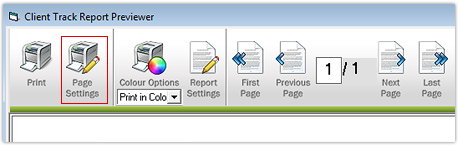
4) Click Page Settings from main menu.
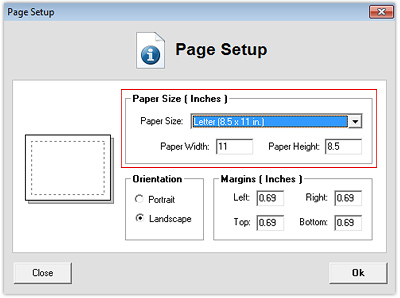
5) Select paper size, orientation, margins and then click Ok.
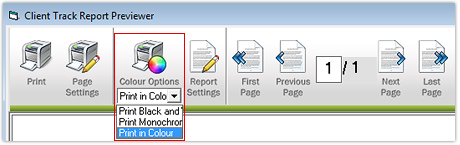
6) Select colour type from drop-down list under Colour Options to print report in.