| Importing Clients' Information |
|
Before importing your clients into Client Track, you must export your clients' information
first from one of the software packages listed on the left side of the menu. |
|
| Follow the instructions below on how to export your clients' information into a text/CSV file. |
|
|
|
| Exporting Clients From Act! |
|
| STEP 1 |
|
 |
|
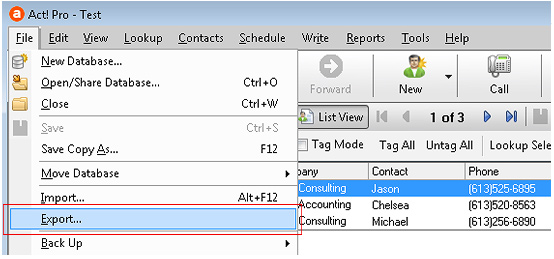
| From the main menu in Act!, go to File > . |
|
| STEP 2 |
|
 |
|
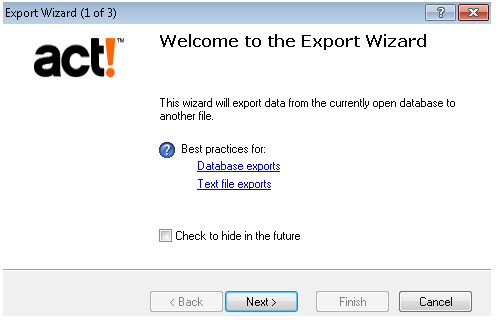
| In the Export Wizard, click to begin exporting. |
|
| STEP 3 |
|
 |
|
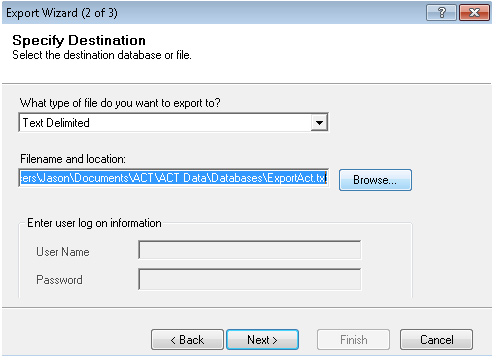
| 1) Select from drop-down list to export file to. |
|
| 2) Click to save export text file to and then click . |
|
| STEP 4 |
|
 |
|
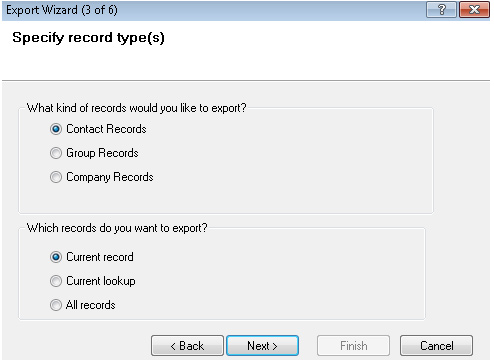
| Select type of records you want to export and then click . |
|
| STEP 5 |
|
 |
|
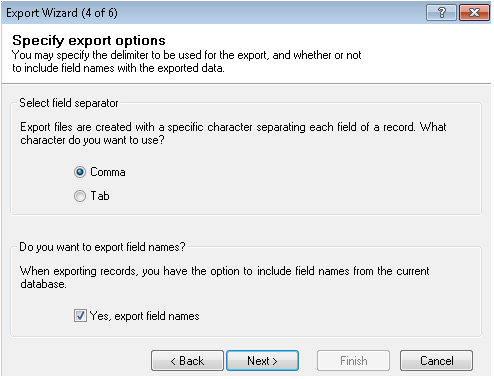
| 1) Select as field seperator and check off . |
|
| 2) Click . |
|
| STEP 6 |
|
 |
|
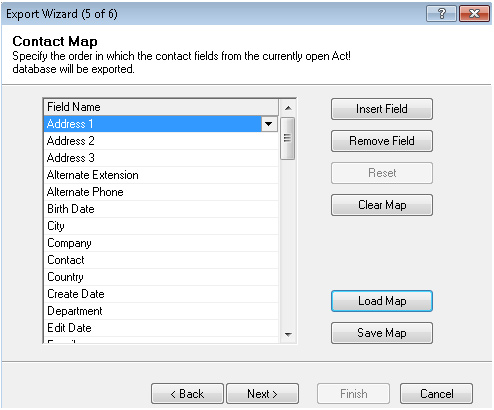
| Select order of the field names from list to export and then click . |
|
| Note: The order of the export fields do not matter because the field can be mapped in Client Track. |
|
| STEP 7 |
|
 |
|
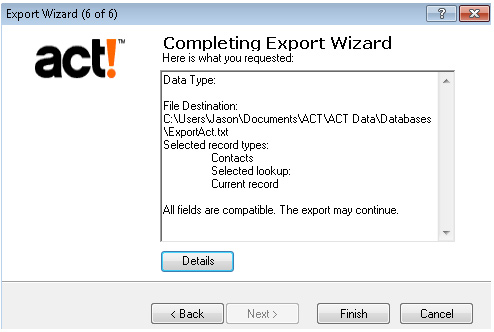
| Click to exit the Export wizard. |
|
| STEP 8 |
|
| After export has been finished, click the link below to import file into Client Track. |
|
| > To import text/CSV file into Client Track, click here. |
|