| Importing Clients' Information |
|
Before importing your clients into Client Track, you must export your clients' information
first from one of the software packages listed on the left side of the menu. |
|
| Follow the instructions below on how to export your clients' information into a text/CSV file. |
|
|
|
| Exporting Clients From Visual Tax |
|
| STEP 1 |
|
 |
|
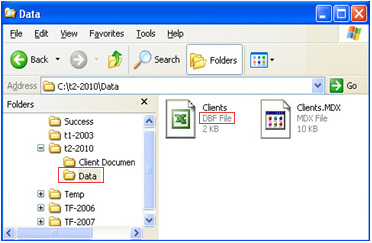
| 1) On your computer, go to the 'Start' menu and click on right side. |
|
| 2) Click on the (C:) Drive, double-click and then folder. |
|
| 3) Click folder and select which DBF file you want to export from T1 or T2 folder. |
|
Note: Your computer may not show file extensions, thus, you need to right-click the file to make
sure it is indeed a DBF file (see above). |
|
| STEP 2 |
|
 |
|
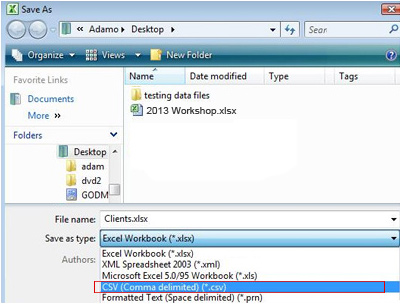
| 1) Open up Microsoft Excel on your computer and open the DBF file you want to export. |
|
| 2) In Excel, click the Office icon from main menu.Go to and select . |
|
| 3) Locate the saved export file and proceed to Step 3 below. |
|
| STEP 3 |
|
| After export has been finished, click the link below to import file into Client Track. |
|
| > To import text/CSV file into Client Track, click here. |
|